
How to use Drapano
Everything from the first photograph to a printed QR tag. Nothing here needs a manual — but if you want the whole thing in one page, this is it.
Before you start
Drapano runs in the browser on any modern phone. There is no app store download. Sign up at drapano.com/app and you get 14 days with every feature, no card. Add it to your home screen and it behaves like an installed app.
The only thing worth doing before your first scan: find a tool with a legible rating plate — the metal or printed panel carrying the brand, model and serial. That is what Drapano reads.
Add your first tool by photographing its rating plate
This is the core of the app and takes about a minute.
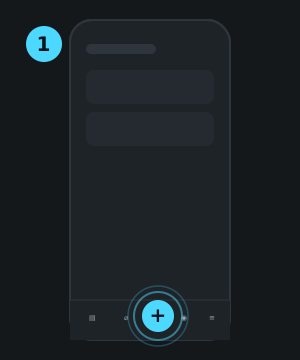
- Tap the + Add tab.
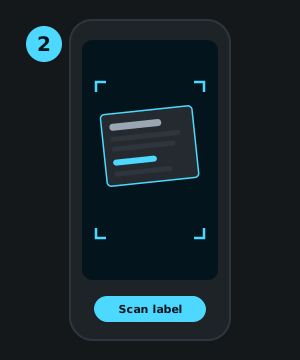
- Tap Scan label and photograph the rating plate. Fill the frame with the plate, hold steady, and avoid glare — the plate is usually shiny, and a reflection across the serial is the single most common reason a scan comes back thin.
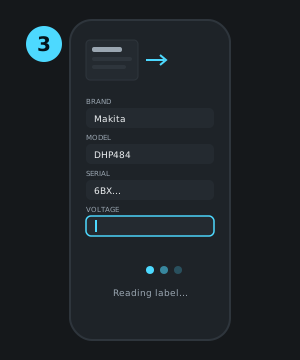
- Wait for Reading label…. An AI vision model extracts the brand, model, serial, category, voltage, battery platform and the specifications that decide which consumables fit — blade diameter, arbor bore, collet size.
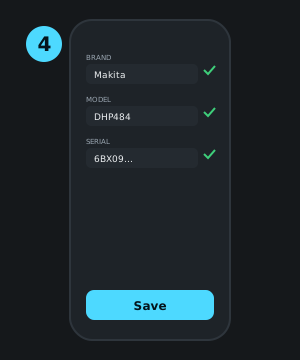
- You will see Label read — check the fields, then save. Read them. The model is good, not infallible, and a serial with a transposed character is worse than no serial.
- If that serial already exists in your fleet, an amber banner appears with a link to the tool you already own. Open it rather than creating a duplicate.
- Add anything the plate doesn't carry — purchase date, price, warranty length, where it lives — and press save.
Nothing is written from a scan you haven't confirmed. The review step is not a formality; it is the design.
Add a whole van in one sitting
Photograph every rating plate first, with your normal camera app. Then open Drapano once.
- Tap + Add, then Bulk add tools.
- Tap Select label photos and choose up to 20 at once.
- Drapano scans them one after another, showing progress. Then you get an editable review list: name, brand, model, serial for each.
- Rows that match a tool you already own are flagged and unchecked for you. Rows carrying the same serial as another photo in the batch are flagged too — that's one tool photographed twice.
- Where no serial was read, Drapano says so. It cannot detect duplicates without one. If you can read the number, type it in; the check runs again when you tab out.
- Photos that look identical — same brand, same model, no serial — get a question, not a decision. Five identical 5.0 Ah batteries are five tools. Drapano will not guess for you.
- Uncheck anything you don't want. Press Add all checked.
Each tool keeps the label photo you scanned it from, attached to its record.
Find out whether an accessory fits — from the shop aisle
This is the feature people keep. You are standing in front of a rack of cutting discs and you cannot remember whether your grinder takes 115 mm or 125 mm.
- Tap the Fit? tab.
- Type a size — 125, TX25, M14, SDS, 30 mm arbor — or photograph the accessory's packaging and let Drapano read it.
- Every tool you own that takes it comes back, with the matching specification highlighted.
The match runs against the specs the label scan captured, which is why the review step in the first section matters.
Hand a tool out, and get it back
Open the tool, tap Hand out. Two paths:
- To a team member. Pick a name. The tool shows as In the hands of that person, and their page lists everything they hold.
- To someone outside the team — a friend, a customer, a subcontractor. Type a name and, optionally, a Due back date. Once that date passes, the tool turns red and reads overdue.
When it comes home, tap Mark returned. Every hand-out stays in the tool's history, and in the person's. Solo accounts see only the outside-the-team path, which is the one that matters when you lend your good impact driver to your brother-in-law.
Warranty, invoices, and service
Record the purchase date and the warranty length in months, and Drapano works out the expiry. Then tap Add invoice photo and photograph the receipt while you still have it. When a tool fails inside its warranty, use Print on the tool's page to produce a claim sheet: the tool's identity across the top, the invoice images below, ready for the counter.
Every repair goes in with Log service — what was done, when, what it cost. Three years later, when you are deciding whether to repair or replace, the argument is already written down.
Print QR asset tags
A tag on the tool means anybody with a phone camera can open its page. No app, no login prompt to scan it.
- Open QR tags from the tools list.
- Choose a Label format: Avery L7160 (63.5 × 38.1 mm, 28 mm QR), the Mini sheet (35.6 × 16.9 mm, 13 mm QR), or a custom vinyl grid where you set the millimetres yourself.
- Print. Use a matte finish. Gloss reflects, and glare blinds the camera trying to read it.
- Stick the tag somewhere that survives — not on a battery you will swap, not on a wear part.
Pre-printed vinyl tags work the other way round. Scan an unused tag and Drapano shows Unclaimed tag: either Pick the tool this tag is on, or create a New tool with this tag, code already attached. Claiming a tag replaces that tool's old asset code, so any sheet you printed for it earlier stops resolving. That is deliberate — one tool, one live code.
Getting your data out
Nothing here is a hostage. Download CSV gives you the whole fleet — 19 columns, specifications flattened, UTF-8 with a byte-order mark and semicolons so European Excel opens it correctly on the first attempt. It respects whatever filter you have applied. There is also a printable list, which prints to paper or saves as a PDF.
Who can do what
Four roles, all enforced on the server, not just hidden in the interface.
- Owner
- Everything. Only an owner can grant or revoke admin.
- Admin
- Manages members and viewers, resets their passwords. Cannot touch another admin.
- Member
- The daily work: add, scan, hand out, log service. Cannot delete.
- Viewer
- Read-only. For an accountant, an insurer, a client.
When a scan goes wrong
If Drapano says it could not read the photo, the plate was too far, too angled, or too shiny. Move closer, kill the reflection, try again. Note that a scan which reaches the AI counts against your monthly allowance even when the result is unusable — the work was done and billed either way. Typing the fields by hand always works and never costs a scan.
If the app feels small, there is a large-text setting under your account, sized for reading a serial number without your glasses.